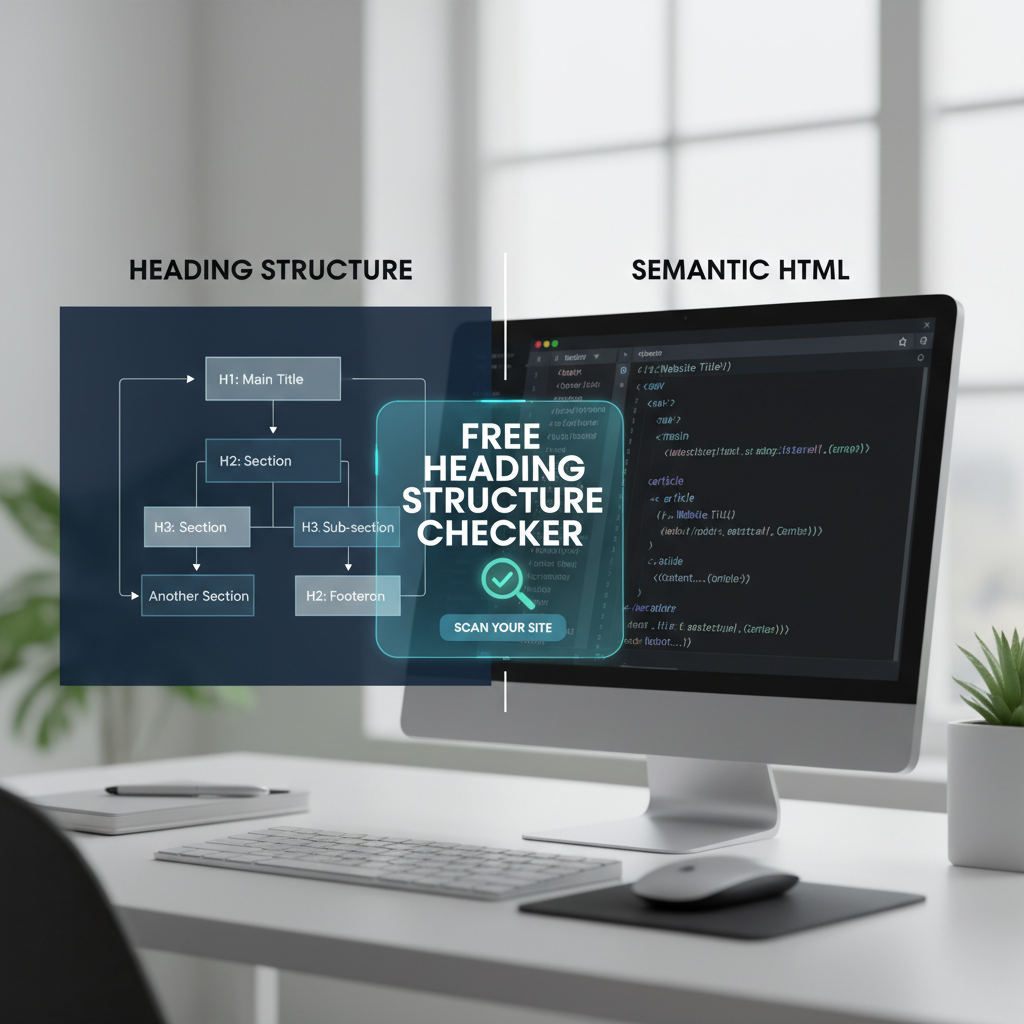
In my decade of auditing technical SEO for enterprise sites, few topics generate as much confusion as the relationship between heading structure vs semantic HTML. Developers often treat them as stylistic choices, while SEOs sometimes conflate them into a single optimization task. However, while they work in tandem to create a crawlable document outline, they serve fundamentally different roles in the Document Object Model (DOM).
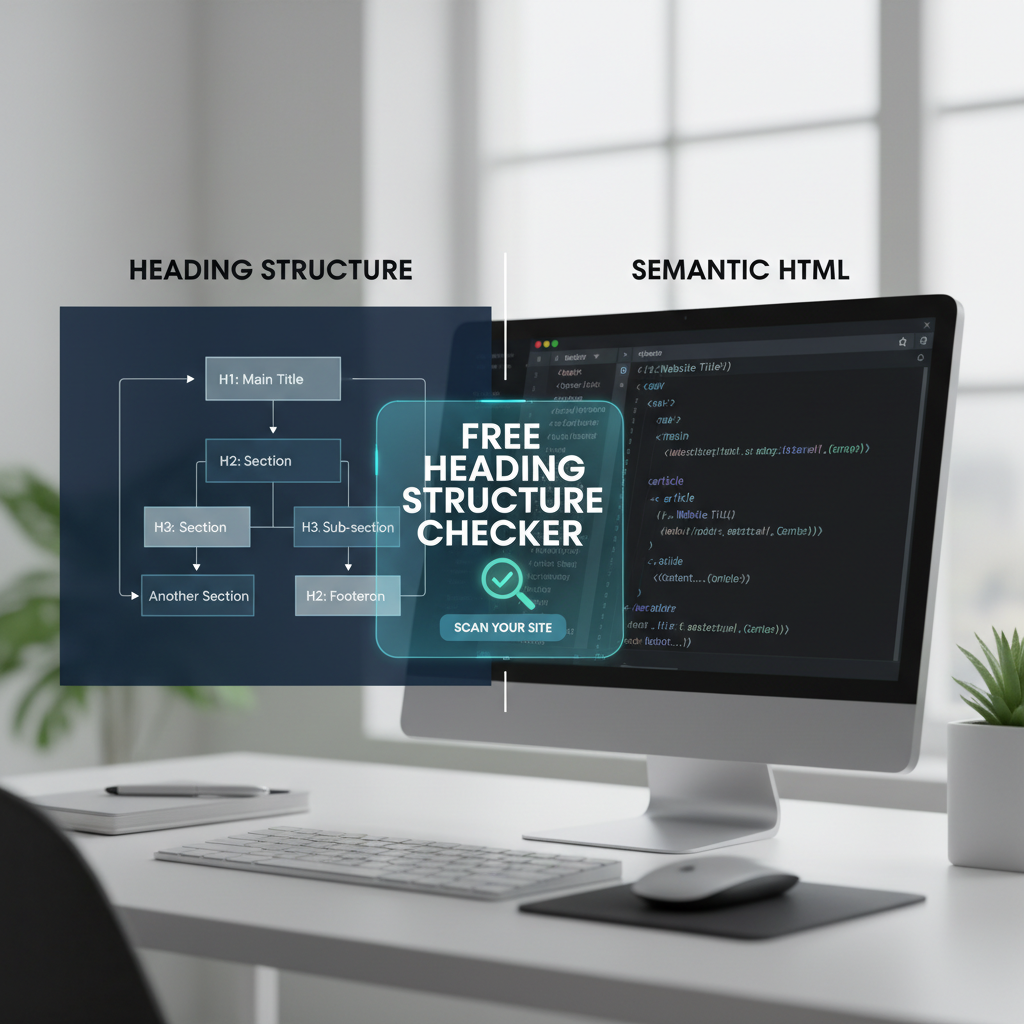
Heading structure refers specifically to the hierarchical ranking of content using <h1> through <h6> tags. Semantic HTML, on the other hand, encompasses a broader set of tags—like <article>, <nav>, and <main>—that define the purpose of the content blocks themselves. Getting this distinction right is not just about code purity; it is the backbone of modern accessibility and search engine understanding.
The Core Difference: Heading Structure vs Semantic HTML
Defining Semantic HTML in Modern Web Development
Semantic HTML consists of tags that explicitly describe the meaning of the content they contain to both the browser and the developer. Unlike generic <div> or <span> tags, which offer no information about the content inside, semantic elements like <header>, <footer>, and <section> provide immediate context. A <div> says "here is a box," while a <nav> says "here are the primary navigation links."
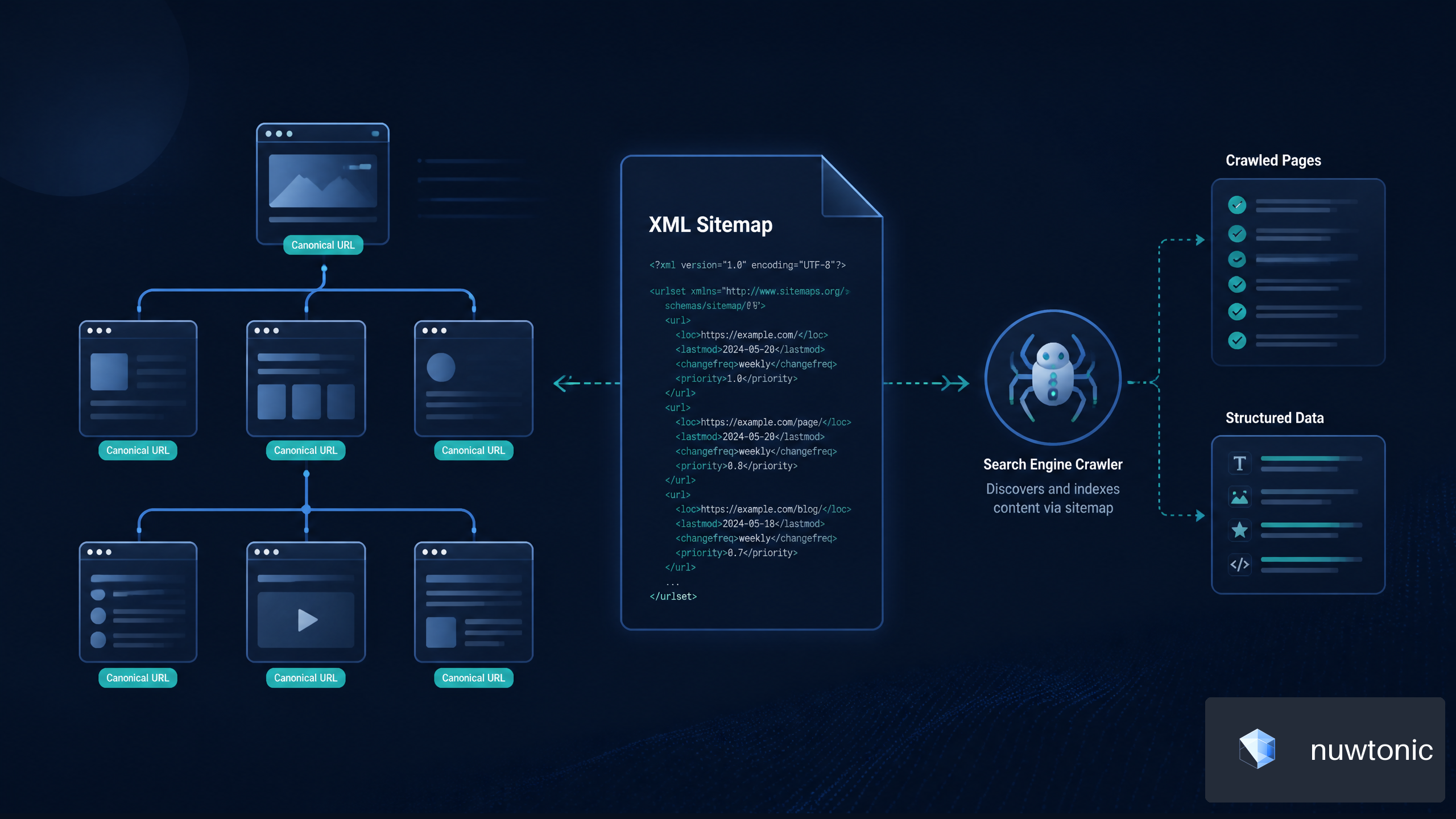
This distinction is critical because search engines rely on these cues to segment pages. When a crawler encounters a <main> tag, it knows to prioritize the content inside over the boilerplate links in the <footer>. Using semantic tags in HTML ensures that your code speaks the same language as the indexing algorithms analyzing it.
The Role of Heading Tags (H1-H6) in Document Outlines
Heading tags act as the table of contents for a webpage, establishing a strict hierarchy of importance. The <h1> tag represents the main topic of the page, while <h2> through <h6> tags represent sub-topics and supporting points. This hierarchy allows users and machines to scan the document structure without reading every word.
I always explain this to clients as a book outline: the <h1> is the book title, <h2>s are chapters, and <h3>s are sub-sections within chapters. If you skip from <h1> to <h4>, you have effectively removed two layers of context, confusing the reader about how the information connects. Proper usage explains why heading tags matter for maintaining a logical flow that search engines can easily parse.
Visualizing the Relationship: Structure Meets Meaning
To clarify how these two concepts interact, I have broken down their specific functions and impacts below.
| Feature | Heading Structure (H1-H6) | Semantic HTML (Tags) |
|---|---|---|
| Primary Function | Establishes hierarchy and outline depth. | Defines the type and purpose of content. |
| Key Elements | <h1>, <h2>, <h3>, <h4>, <h5>, <h6> |
<main>, <article>, <section>, <nav>, <aside> |
| SEO Impact | Helps keywords rank by signaling importance. | Helps crawlers understand page segmentation. |
| Accessibility | Allows screen readers to jump between topics. | Allows users to navigate to specific regions (landmarks). |
| Common Mistake | Using headings for font sizing only. | Using <div> for everything (Div Soup). |
Why Google and Screen Readers Rely on Structure
How Search Engines Parse Semantic Hierarchy
Search engines use semantic hierarchy to determine which parts of a page are unique content versus repetitive boilerplate. When Googlebot crawls a page, it builds a semantic tree. If your main content is wrapped in a <main> tag and structured with logical <h2>s, the algorithm can easily extract entities and answers for features like Featured Snippets.
Conversely, a page built entirely with <div> tags forces the crawler to guess where the content begins and ends. This inefficiency can lead to lower crawl budgets and missed ranking opportunities. Recent industry analysis confirms that semantic HTML matters for SEO specifically because it reduces the computational load required for search engines to "read" your site.
Accessibility Standards and WCAG Compliance
Screen readers like NVDA and JAWS rely heavily on both headings and semantic regions to help visually impaired users navigate. A blind user will often pull up a list of headings to skim the page's content. If your headings are missing or out of order (e.g., jumping from H2 to H5), the navigation list becomes disjointed and confusing.
Furthermore, semantic landmarks allow users to jump directly to the navigation or main content, bypassing repetitive header information. This is not just a "nice to have"; it is a requirement under WCAG 2.1 Success Criterion 1.3.1 (Info and Relationships).
The Impact on Skimmability and User Experience
Users rarely read web pages word-for-word; they scan for keywords and section titles to find relevance. A clear heading structure acts as a visual anchor, guiding the eye down the page. When headings are descriptive and semantically correct, they improve the "time to value" for the reader.
If a user lands on a wall of text with no breaks or only visual bolding (without heading tags), they often bounce immediately. The structure signals to the user that the content is organized, professional, and worth their time.
Best Practices for Implementing Headings and Semantics
Establishing a Logical Heading Order
Logical heading order demands that you never skip a heading level when descending the hierarchy. You should always proceed from <h1> to <h2>, and from <h2> to <h3>. While you can jump back up (e.g., from <h3> to <h2> to start a new section), skipping down creates a broken outline.
Correct Hierarchy Example:
• H1: Ultimate Guide to Coffee
• H2: History of Coffee
• H3: Ethiopian Origins
• H3: Spread to Europe
• H2: Brewing Methods
• H3: French Press
Incorrect Hierarchy Example:
• H1: Ultimate Guide to Coffee
• H4: History of Coffee (Skipped H2 and H3)
Choosing the Right Semantic Tags for the Job
Selecting the correct semantic tag depends on the independence of the content. Use <article> for content that stands alone and makes sense even if removed from the page (like a blog post or news story). Use <section> for grouping thematically related content that is part of a larger whole.
Use <aside> for content that is tangentially related to the main content, such as sidebars or call-out boxes. Misusing these tags—for example, putting the main blog post inside an <aside>—can signal to Google that the content is less important, potentially harming rankings.
Handling Multiple H1 Tags and Sectioning Elements
HTML5 specifications technically allow for multiple <h1> tags if they are nested within distinct sectioning elements like <article> or <section>. However, in practice, most SEOs and accessibility experts recommend sticking to a single <h1> per page. This provides a singular, unambiguous title for the document, which aligns best with how search engines display title tags in SERPs.
Auditing Your Site: A Step-by-Step Workflow
Manual Code Inspection Techniques
Manual inspection involves viewing the page source or using the browser's "Inspect Element" tool to verify tags. I recommend right-clicking on your headings and ensuring they are wrapped in <h1>-<h6> tags rather than styled <div>s. Check that your navigation is wrapped in <nav> and your primary text is within <main>.
While effective for spot-checking, this method is tedious for large sites. You need to verify that the visual hierarchy matches the code hierarchy—often, a large font size visually implies an H2, but the code might be a span with a class.
Automated Validation with Tools
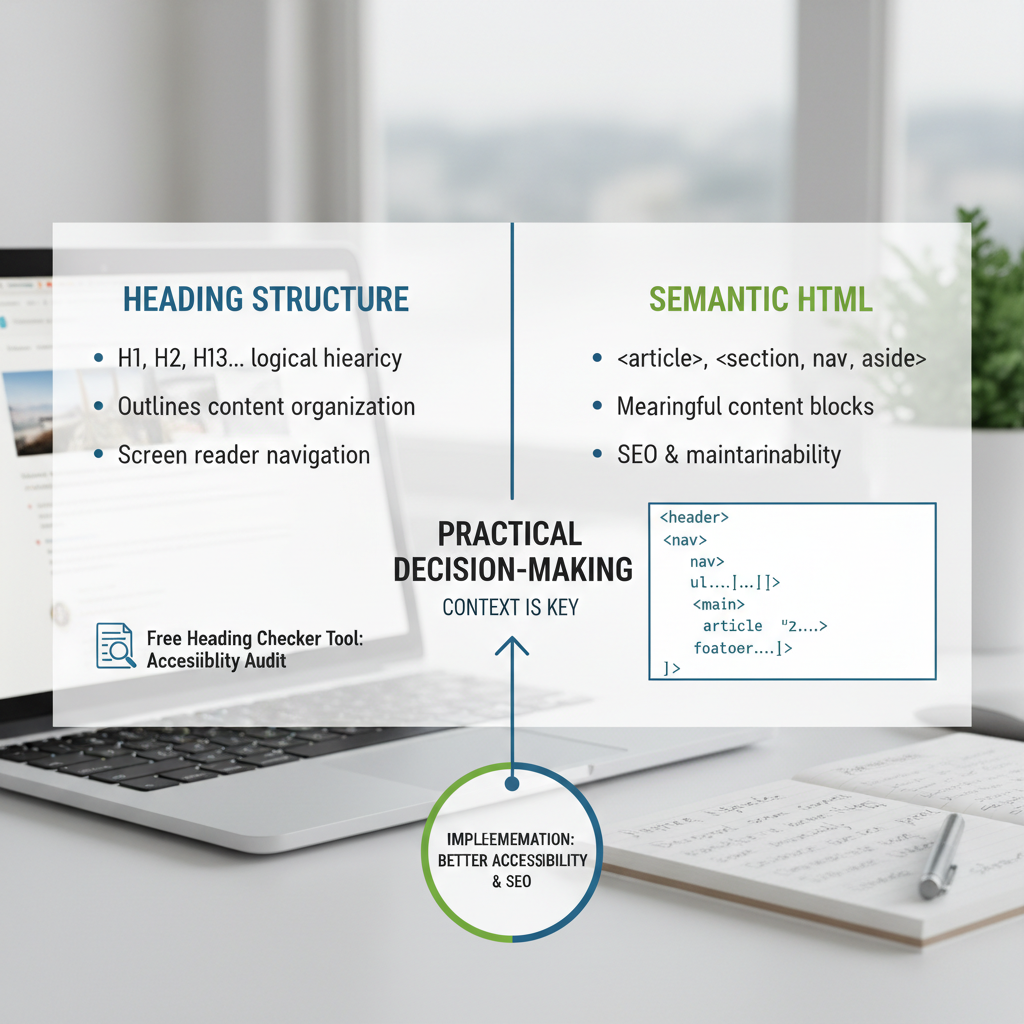
Automated validation is essential for scaling your audit process across hundreds of pages. Tools can crawl your site and instantly flag skipped heading levels, missing H1s, or empty headings that clutter the DOM. For a quick and accurate assessment, I use a free heading structure checker to visualize the document outline exactly as a crawler sees it.
This type of tool highlights the nested relationships between your headings, making it immediately obvious if you have broken the logical tree structure. It saves hours of manual code digging and provides a clear roadmap for fixes.
Interpreting Audit Results for Quick Wins
Audit results should be prioritized by impact on the document outline. First, fix any pages missing an <h1> or having duplicate <h1>s, as these confuse the primary topic signal. Next, address any "skipped levels" (e.g., H2 to H4), as these are accessibility failures.
Finally, look for opportunities to replace generic <div> containers with semantic alternatives like <section> or <article>. Even small changes here can improve the signal-to-noise ratio for heading tags and Google crawlers.
Frequently Asked Questions
Does heading structure directly affect ranking?
Heading structure is a significant ranking factor because it helps Google understand relevance and content hierarchy. While simply having H2s won't guarantee a #1 spot, a logical structure enables Google to index your content more accurately for specific long-tail queries.
Can I use H1 tags in multiple sections?
HTML5 allows multiple H1s if nested in sectioning roots, but a single H1 is the industry standard for SEO. It avoids diluting the page's primary keyword focus and ensures compatibility with older screen readers and browsers.
What is the difference between section and article tags?
The <article> tag is for self-contained content that could be distributed independently (like a blog post), while <section> is for grouping thematically related content within a document or application. If the content cannot stand alone, use <section>.
How do I fix skipped heading levels?
Skipped heading levels should be fixed by either changing the heading tag to the correct level (e.g., changing an H4 to an H3) or adding the missing intermediate headings if the content structure supports it. Do not choose heading levels based on font size; use CSS to adjust the visual size instead.
Do semantic tags replace ARIA roles?
Native semantic HTML tags (like <nav> or <main>) are preferred over ARIA roles (like role="navigation") because they have built-in accessibility behaviors. You should only use ARIA roles when you cannot use the native HTML element for some technical reason.