
TL;DR Summary
The "Submitted URL blocked by robots.txt" error in Google Search Console (GSC) occurs when you ask Google to index a page via your XML sitemap, but your site's robots.txt file explicitly tells Googlebot not to crawl it. To fix this, you must either remove the Disallow directive in your robots.txt file so Google can crawl it, or remove the URL from your sitemap if it shouldn't be indexed in the first place.
Key Takeaways
• The error is a contradiction: your sitemap says "crawl this," while your robots.txt says "do not crawl this."
• Most of the time, the solution to a blocked URL is staring you right in the face; it's usually a simple fix in your sitemap or robots.txt file.
• You can use the URL inspection tool in GSC to pinpoint exactly which line of code is blocking Googlebot.
• Never blindly delete your robots.txt file to solve this issue — you might expose sensitive backend pages to search engines.
Table of Contents
- The Anatomy of a robots.txt Crawl Error
- What NOT to Do When You See This Error
- How to Diagnose the Blocked URL in GSC
- Step-by-Step Guide to Fixing the Error
- Validating Your Fix in Google Search Console
- Frequently Asked Questions (FAQ)
The Anatomy of a robots.txt Crawl Error
What Does "Submitted URL Blocked" Actually Mean?
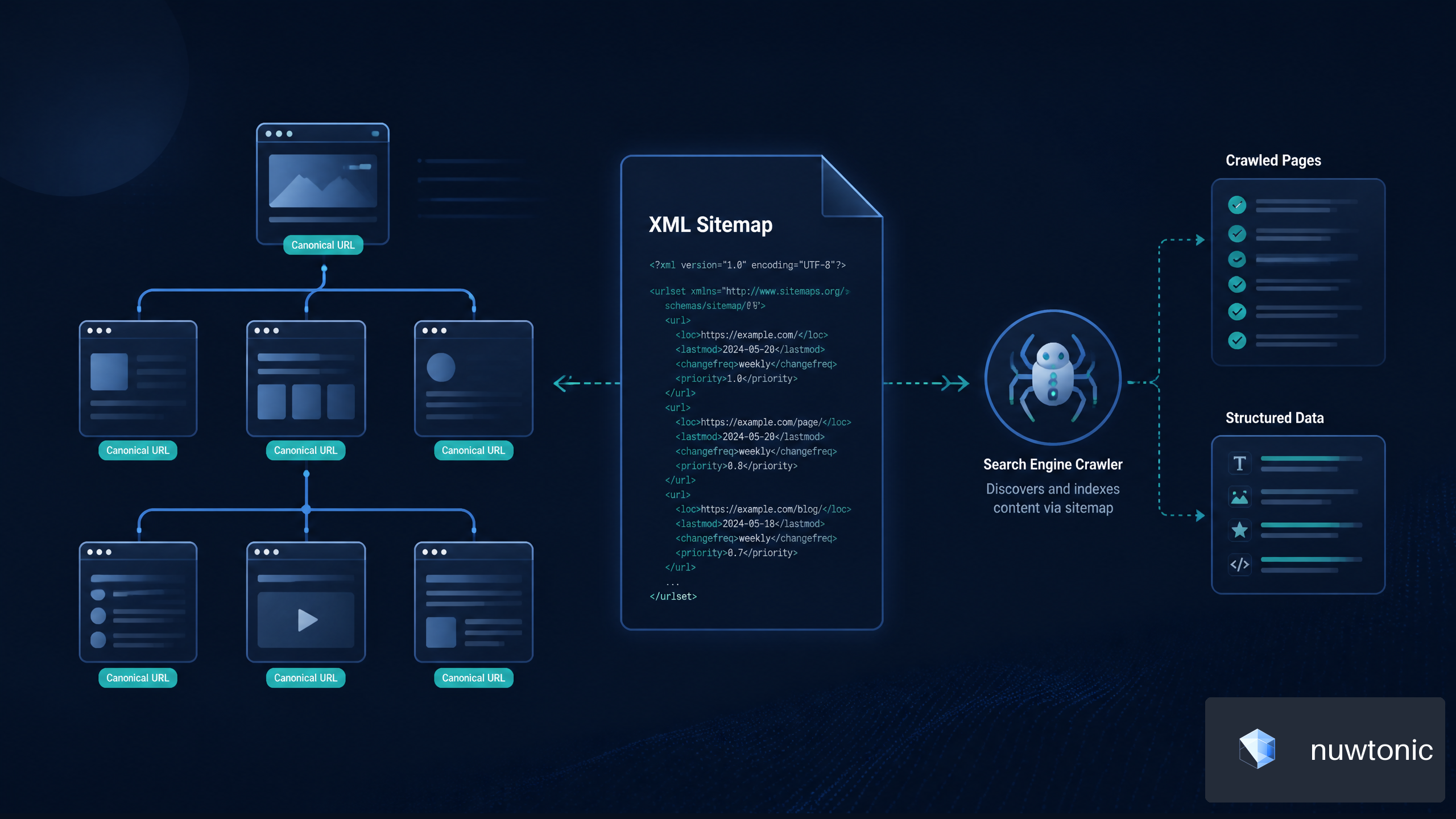
Look, the first thing you need to understand is that Google is a machine that thrives on clear instructions. When you see the "Submitted URL blocked by robots.txt" error in GSC, you are sending Google mixed signals. You have "submitted" the URL by including it in your XML sitemap, which is essentially an invitation for Google to crawl and index the page. However, when Googlebot arrives at the door, your robots.txt file acts as a bouncer, pointing to a Disallow directive and turning the bot away.
Why Google Cares About Your robots.txt File
I've noticed that a lot of people skip over the robots.txt file, thinking it's too technical — trust me, it's not rocket science. It is simply a text file at the root of your domain that dictates crawl rules. Google respects these rules to avoid overloading your server and to keep out of directories you want kept private (like admin dashboards or shopping carts). If Google ignored robots.txt, the web would be an unmanageable mess of indexed login screens and duplicate parameters.
The Difference Between Crawling and Indexing
To troubleshoot effectively, we need to separate crawling from indexing. They are not the same thing, and confusing them is a rookie mistake.
| Concept | Definition | Mechanism | SEO Impact |
|---|---|---|---|
| Crawling | The process of Googlebot discovering and reading your page's code. | Controlled by robots.txt. |
If blocked, Google can't see the content on the page. |
| Indexing | The process of Google storing and ranking your page in search results. | Controlled by noindex tags and canonicals. |
If blocked, the page won't appear in Google Search. |
What NOT to Do When You See This Error
Don't Panic and Delete the File
I once had an e-commerce client who mistakenly added a Disallow: /products/ directive right before Black Friday. When they saw the errors piling up in GSC, their developer panicked and deleted the entire robots.txt file. Sure, the error went away, but suddenly Google started crawling thousands of internal search result pages, tanking their crawl budget. Never delete the file; fix the specific directive.
Avoid Blindly Allowing All User-Agents
Another common mistake is changing your file to Allow: / for all User-Agents without reviewing what you are exposing. You might accidentally allow malicious bots or scraper tools to hammer your server. Always be surgical with your fixes. Target the specific folder or URL path causing the crawl error.
Stop Ignoring the URL Inspection Tool
In my experience, troubleshooting in GSC can save you hours of frustration if you just know where to look. Guessing which rule is blocking your page is a waste of time. The URL inspection tool will literally highlight the exact line in your robots.txt file that is causing the problem. Use the tools Google gives you before making blind changes.
How to Diagnose the Blocked URL in GSC
Step 1: Isolate the Affected URLs in the Indexing Report
Open Google Search Console and navigate to the "Pages" report under the Indexing tab. Scroll down to the "Why pages aren't indexed" section and click on "Submitted URL blocked by robots.txt". This will give you a detailed list of every page suffering from this specific indexing issue. Export this list to a spreadsheet so you can look for patterns. Are they all blog posts? Are they all parameter URLs? Finding the pattern is half the battle.
Step 2: Run the URL Inspection Tool
Click on one of the affected URLs in the report and select the magnifying glass icon to inspect it. The URL inspection tool will fetch the current index status. Look at the "Page fetch" status. It will clearly state that the fetch failed due to robots.txt. This confirms that the issue is active and not just a historical anomaly.
Step 3: Test Your Live robots.txt File
Before you invest in expensive on-page SEO audit tools, master the basics in GSC. Google recently retired the old robots.txt tester, but you can still append /robots.txt to your root domain in your browser to view the live file. Compare the blocked URL path against the Disallow rules in this text file. You are looking for a rule that matches the URL structure. For example, if your blocked URL is example.com/wp-admin/post.php, the culprit is likely Disallow: /wp-admin/.

Step-by-Step Guide to Fixing the Error
Option A: Removing the Disallow Directive
If the URL is a valuable piece of content that you want to rank in Google, the fix is to remove the block.
- Access your website's root directory via FTP or your hosting file manager.
- Open the
robots.txtfile in a plain text editor. - Locate the
Disallowdirective that is blocking the URL. - Either delete the line entirely or modify it to be more specific so it doesn't catch your target URL.
- Save and upload the file.
Option B: Removing the URL from Your XML Sitemap
Sometimes, a URL is blocked intentionally (like a checkout page), but a well-meaning SEO plugin submitted it anyway. This is a structural issue. It's similar to learning how to find keyword cannibalization in GSC — you have to look at the conflicting signals your site is sending. If the page shouldn't be indexed, leave the robots.txt file alone and remove the URL from your XML sitemap.
- Open your SEO plugin settings (like Yoast, RankMath, or Nuwtonic).
- Navigate to the sitemap settings.
- Exclude the specific page, post type, or taxonomy from the sitemap generation.
- Regenerate the sitemap and verify the URL is gone.
Option C: Fixing Conflicting User-Agent Rules
Occasionally, you might have conflicting rules for different bots. For instance, you might allow * (all bots) but specifically disallow Googlebot. Read through your file carefully. The first matching rule for a specific user-agent is the one that gets applied. Ensure that User-agent: Googlebot or User-agent: * doesn't contain a rogue disallow for your important pages.
Validating Your Fix in Google Search Console
Requesting Indexing After the Update
Once you have updated your robots.txt file or cleaned up your sitemap, you need to tell Google about it. Go back to the URL inspection tool, plug in the previously blocked URL, and hit "Test Live URL". If your fix worked, the "Page fetch" status will change to "Successful". Once you see that, click "Request Indexing".
Monitoring the "Validate Fix" Progress
Next, go back to the "Pages" report where you originally found the "Submitted URL blocked by robots.txt" error. Click the "Validate Fix" button. Google will initiate a validation process. They won't check all URLs immediately; they will sample a few to ensure the block is lifted. You will receive an email notification once the validation is either passed or failed.
How Long Does Google Take to Recrawl?
A blocked URL is a dead end for Googlebot. Much like understanding why broken links hurt SEO, you need to realize that blocking submitted pages wastes your crawl budget. Once fixed, Google's recrawl time varies. For high-authority, frequently updated sites, it might take a few hours. For smaller, static sites, it could take up to a week or two. Be patient. As long as the Live Test passes, you've done your job.
Frequently Asked Questions (FAQ)
Can a blocked URL still be indexed?
Yes, and this is a common point of confusion. If a URL is blocked by robots.txt, Googlebot cannot crawl the page content. However, if there are many external links pointing to that URL, Google might still index the URL itself based on the anchor text of those external links. The search snippet will usually say something like, "No information is available for this page." If you want to completely remove a page from the index, you must allow crawling and use a noindex tag instead.
Is robots.txt the same as a noindex tag?
Absolutely not.
• robots.txt controls crawling (whether the bot can look at the page).
• noindex controls indexing (whether the page can appear in search results).
• If you block a page in robots.txt, Google never sees the noindex tag in the HTML, which is why the page might still get indexed.
How do I test my robots.txt file without GSC?
If you don't have access to GSC, you can use various third-party SEO crawlers like Screaming Frog or Sitebulb. You can also manually inspect the file by navigating to yourdomain.com/robots.txt in your browser. However, to guarantee you are seeing exactly what Googlebot sees, GSC's URL Inspection tool is always the gold standard.
Sources and References
• Google Search Central Documentation on robots.txt specifications.
• Google Search Console Help Center guidelines for Indexing reports.
• Nuwtonic internal data and 8+ years of practitioner experience resolving technical SEO crawl errors for SME and enterprise clients.